Why Check Your Ayushman Card Status?
After you submit your application or eKYC, the system needs time to verify your details against the SECC 2011 database and Aadhaar records. Checking your status helps you:
- Confirm whether your card is ready to download
- Identify if your application is stuck in pending state
- Detect any rejection early and take corrective action
- Verify your card is currently active for hospital treatment
- Track the timeline of your eKYC submission
Status check is completely free, takes under 2 minutes, and doesn’t require leaving home. The system works 24/7 — you can check anytime.
Pick Your Preferred Lookup Method
All methods produce the same status result — choose the one that fits your situation.
Check Status by Aadhaar Number
Step 1: Login to the PMJAY Portal
Visit beneficiary.nha.gov.in and click the “Beneficiary” tab. Enter your Aadhaar-linked mobile number, captcha, and OTP to login.
Step 2: Set Search Filters
In the dashboard, set:
- Scheme: PMJAY (or PMJAY-Vay Vandana for 70+ seniors)
- State: Your state
- Sub-Scheme: PMJAY
- District: Your district
- Search By: Aadhaar Number
Step 3: Enter Your Aadhaar
Enter your 12-digit Aadhaar number and click “Search”.
Step 4: View Your Status
The portal displays your record with the Card Status column showing one of three values: Approved, Pending, or Not Generated. The next section explains what each status means.
What Each Status Means
Quick reference for the 3 possible status codes you’ll see.
Approved
ReadyYour application is complete and your card is ready. You can immediately download your card PDF from the portal.
Pending
In ReviewYour eKYC is submitted but still under verification. Most cases clear in 15 minutes to 1 hour, but it can take up to 24 hours during high-traffic periods.
Not Generated / Rejected
Action NeededeKYC was not completed, or verification failed. Common causes: photo mismatch, Aadhaar issues, or unlinked mobile. See troubleshooting below.
Check Status by Mobile Number
Step 1: Login
Visit beneficiary.nha.gov.in and login with your Aadhaar-linked mobile number + OTP.
Step 2: Choose Search By Mobile
In the dashboard, set Search By: Mobile Number (instead of Aadhaar). The system uses the mobile number registered against your PMJAY profile.
Step 3: Enter the Mobile Number
Enter the 10-digit mobile number and click “Search”. All family members linked to that number appear with individual status badges.
Note: This method only works if the mobile number you enter is registered in the PMJAY database. If you’ve recently changed numbers, use the Aadhaar method instead.
Check Status by Family ID
Step 1: Find Your Family ID
Your Family ID is typically printed on your ration card or shown on the PMJAY portal beneath your family record. State-specific Family IDs include:
- Karnataka: Kutumba ID
- Haryana: Parivar Pehchan Patra (PPP) ID
- Tamil Nadu: State Family ID
- Other states: PMJAY-generated Family ID
Step 2: Login and Set Search
Login to beneficiary.nha.gov.in. Set Search By: Family ID.
Step 3: View All Members
Enter the Family ID and search. The result shows every member of the family with each one’s individual status — useful for tracking multiple members at once.
Check Status Through the PMJAY Beneficiary Portal (BIS 2.0)
Step 1: Open the Official PMJAY Portal
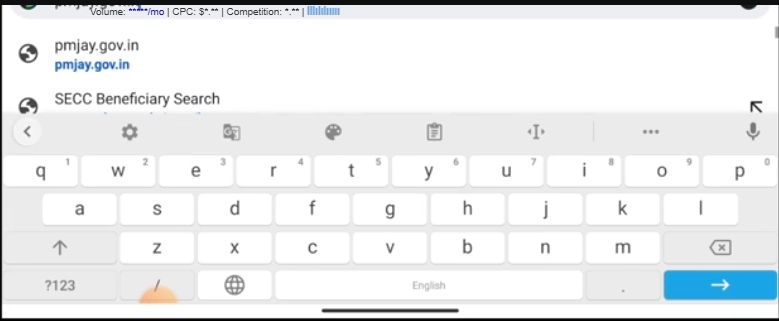
Open any browser on your phone or computer and type pmjay.gov.in in the address bar. This takes you to the official Pradhan Mantri Jan Arogya Yojana website maintained by the National Health Authority.
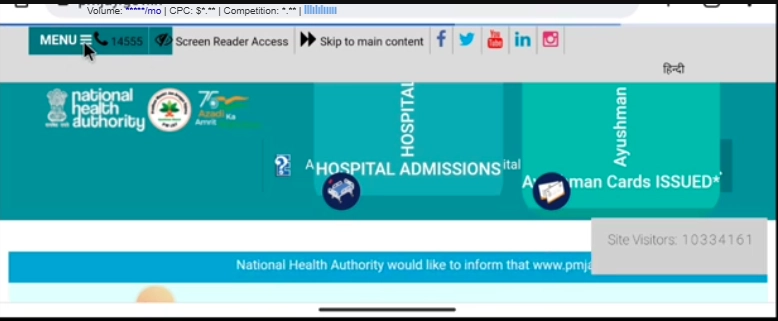
Step 2: Open the Menu
Once the portal loads, look for the Menu icon in the top left corner of the screen. It appears as three horizontal lines. Tap on it to expand the full navigation panel.
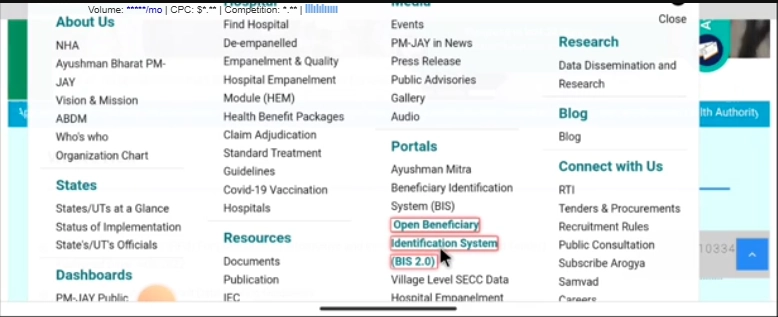
Step 3: Open the Beneficiary Identification System
Scroll down through the menu options until you find the Portal section. Under this section, tap on “Open Beneficiary Identification System (BIS 2.0)”. This will redirect you to the BIS portal where all card applications are tracked.
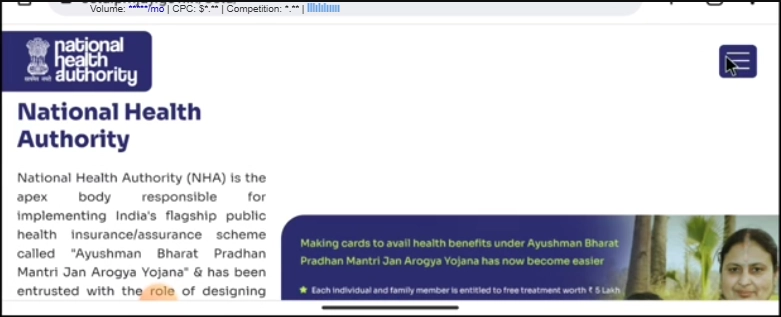
Step 4: Access the Login Page
On the BIS 2.0 page, look for the three small lines (menu icon) in the top right corner of the screen. Tap on it to open the secondary menu.
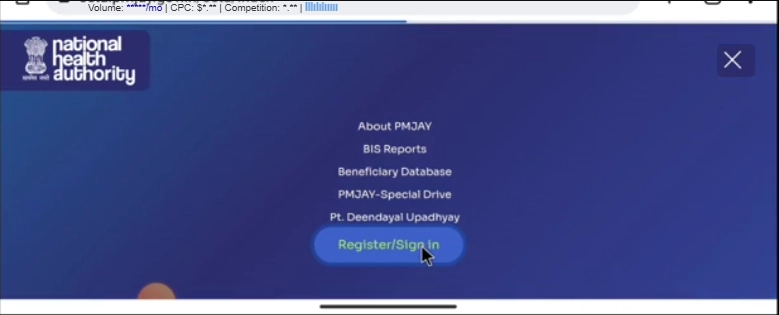
Step 5: Click Register or Sign In
From the dropdown that appears, tap the “Register / Sign In” button. This takes you to the authentication page where you verify your identity before accessing your records.
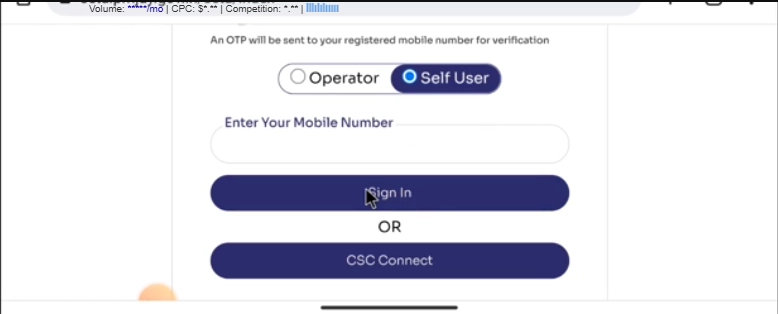
Step 6: Select Self User
On the next screen, you will see multiple login options. Tap on the “Self User” button. This is the correct option for individual beneficiaries checking their own card status.
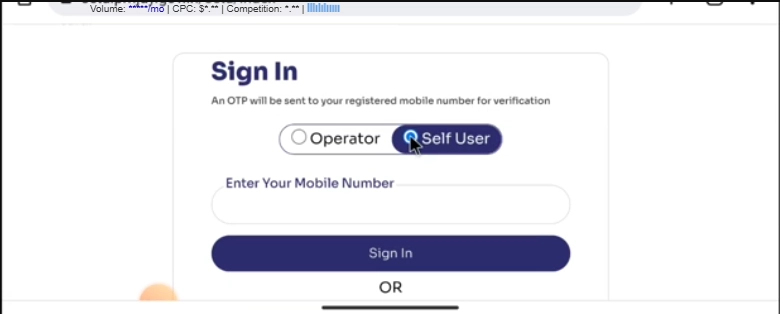
Step 7: Enter Mobile Number and OTP
Enter your registered mobile number in the field provided. Within a few seconds, you will receive a one time password (OTP) on that number. Type the OTP into the verification field and tap “Sign In” to access your dashboard.
Step 8: Open Menu Again
After logging in successfully, tap the Menu icon once more to expand the navigation options inside your dashboard.
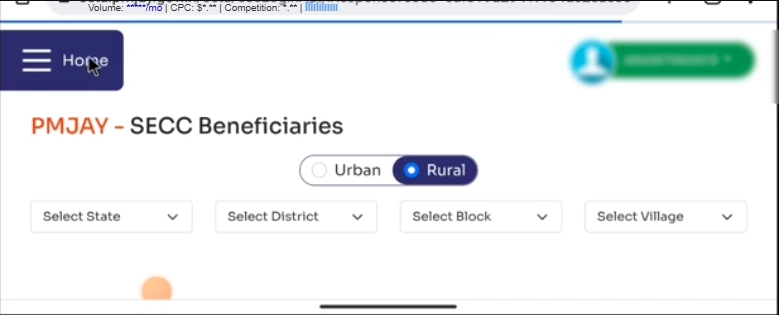
Step 9: Navigate to Applied History
In the menu list, look for the option labelled “User Activity”. Tap on it to expand the submenu. From the submenu, select “Ayushman Card Applied History”. This opens the page where all your past applications are recorded.
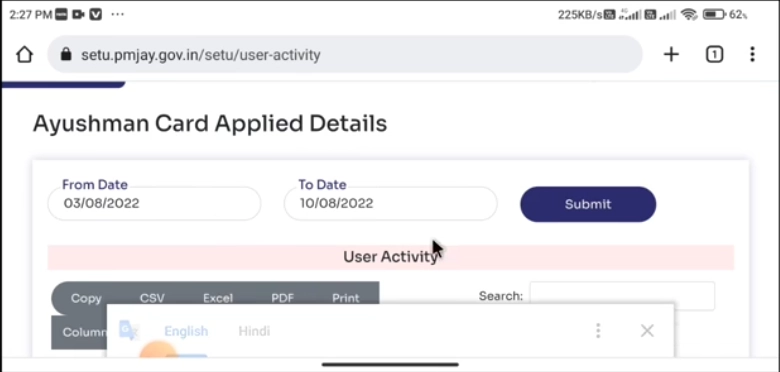
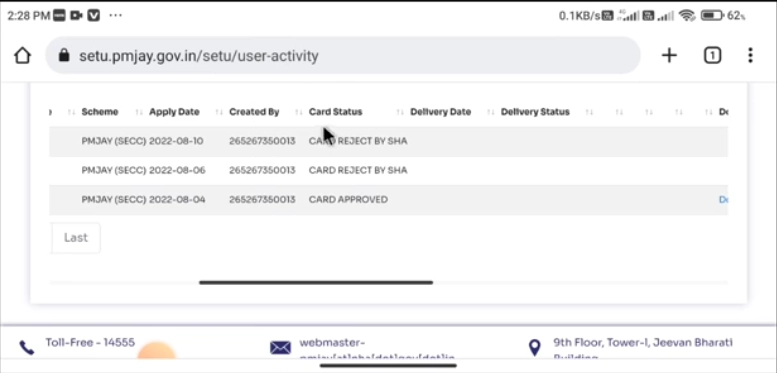
Step 10: View Your Application Status
The system will automatically populate a list showing all your application dates, submission details, and current processing status. You will see one of these outcomes:
- Rejected, meaning the application could not be processed (with reason displayed)
- Approved, meaning your card has been generated and is ready for download
- In Progress, meaning your application is still being processed by NHA
- Pending Verification, meaning additional checks are required before approval
Check Status via Official Ayushman App
The official Ayushman Bharat mobile app supports all four lookup methods above. Open the app → Login → tap Search Beneficiary → select state, district, and your preferred search method. Status displays with the same color-coded badges as the portal.
Install the official Ayushman App →What to Do for Each Status?
If Your Status Is “Approved”
You’re set. Proceed immediately to download your Ayushman Card PDF. The card is valid for use at all 30,000+ empanelled hospitals. Save the PDF to your phone and DigiLocker, and print a copy for your wallet.
If Your Status Is “Pending”
Wait between 15 minutes to 24 hours, then refresh the status. Most pending applications clear quickly because the NHA system runs automatic verification against SECC 2011 and Aadhaar databases. During very heavy portal traffic (typically 10 AM – 6 PM weekdays), it may take longer.
If your status is still pending after 24 hours:
- Log out and log back in to refresh the cache
- Try the Ayushman App instead of the portal
- Call the helpline 14555 for manual escalation
- Visit a CSC where the operator has deeper portal access
If Your Status Is “Not Generated” or Rejected
This means your eKYC was never completed or failed verification. Common fixes:
- Retry eKYC on the portal or Ayushman App — see our complete eKYC guide
- Visit a CSC for biometric authentication — bypasses most online failures
- Verify Aadhaar-mobile linkage at resident.uidai.gov.in
- If the family record isn’t found at all, check our eligibility guide for alternative paths
Common Status Check Issues
When to Recheck Your Status
Smart timing prevents wasted refreshes.
Toll-free · 11+ Indian languages · Monday to Saturday
Frequently Asked Questions
How long does it take to get Approved status after applying?+
Can I check Ayushman Card status without an Aadhaar-linked mobile?+
What does “Not Generated” mean in the status column?+
Can I check status for all my family members in one search?+
Why is my Ayushman Card status taking so long?+
Is the status check service free?+
Can I check Ayushman Vay Vandana Card status the same way?+
What if status shows Approved but I can’t download the card?+
Official sources: pmjay.gov.in · beneficiary.nha.gov.in · Helpline: 14555