The official Ayushman Bharat app is the National Health Authority’s mobile platform for accessing all PMJAY services on your phone. This 2026 guide walks you through installing the genuine app, identifying fake lookalikes to avoid, completing first-time setup, and using each feature effectively.
About the Official Ayushman App
The Ayushman Bharat app is developed and maintained directly by the National Health Authority (NHA) — the same body that runs the PMJAY scheme. It provides a mobile-first interface to all PMJAY services available on the beneficiary portal.
Key app details:
- App Name: Ayushman Bharat
- Publisher: National Health Authority
- Platforms: Android (Google Play Store) and iOS (Apple App Store)
- Size: Approximately 25 MB on Android, 40 MB on iOS
- Cost: Completely free with no in-app purchases
- Languages: 11+ Indian languages including Hindi, English, Bengali, Tamil, Telugu, Marathi, Gujarati, Kannada, Malayalam, Punjabi, Urdu, Odia, and Kashmiri
What You Can Do With the App
The app supports the complete PMJAY journey:
- Check eligibility by Aadhaar, mobile, ration card, or family ID
- Complete eKYC via Aadhaar OTP or Face Authentication
- Download Ayushman Card PDFs to your phone storage
- Verify card validity with real-time status badges
- Locate empanelled hospitals using GPS-based proximity search
- Access PMJAY helpline directly from within the app
- Register for Vay Vandana (70+ senior citizen scheme)
The app is particularly useful in rural areas where the web portal can struggle on slower connections — the mobile app is optimised for performance on 3G and patchy 4G networks.
Identifying the Real App — Critical Warning
This is the most important section of this guide. The Play Store has dozens of apps with names like “Ayushman Card”, “Ayushman Bharat Yojana”, “PMJAY Card Download”, and “Ayushman Download”. Most of these are unofficial — some collect your personal data, some charge fees for what is officially free, and some show misleading advertisements.
How to Verify the Official App
Before installing, check all of these:
- App Name: Must read “Ayushman Bharat” exactly
- Publisher: Must say “National Health Authority” — not any other developer
- Install Count: The official app has over 5 crore (50 million) downloads in 2026
- Star Rating: Maintains 4+ stars with millions of reviews
- App Icon: Shows the NHA branding with the official Ayushman Bharat logo
- Last Update: Usually updated within the last 1-2 months
Warning Signs of Fake Apps
Avoid apps showing any of these:
- Publisher names like “PMJAY Apps”, “Ayushman Solutions”, or individual developer names
- Requests for payment to register or download the card
- Excessive permissions (SMS reading, contacts, unrelated camera access)
- Very low install counts (under 1 lakh)
- Multiple 1-star reviews mentioning scams or hidden charges
- Aggressive in-app advertising
If you accidentally installed a fake app, uninstall it immediately, clear its data, and consider running a security scan on your device.
How to Install on Android
The official app works on Android 5.0 (Lollipop) and above — covering virtually all Android phones in use today.
Method 1: Direct Play Store Install
Step 1: Open Google Play Store on your Android phone
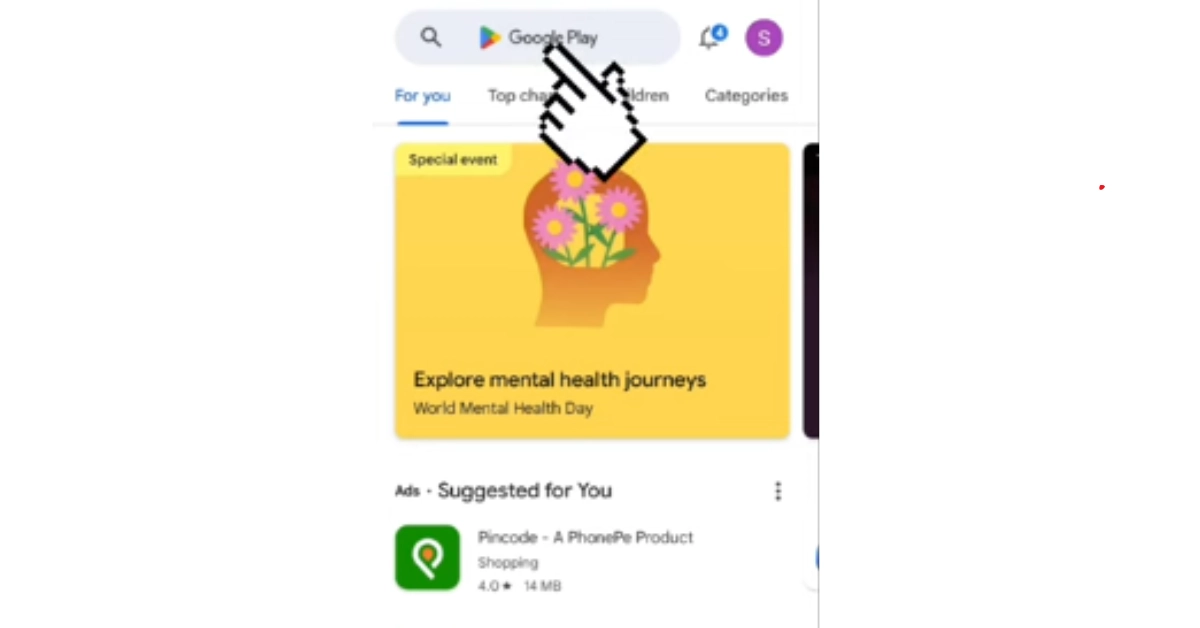
Step 2: Search “Ayushman Bharat” (avoid variants like “Ayushman Card” which show fakes)
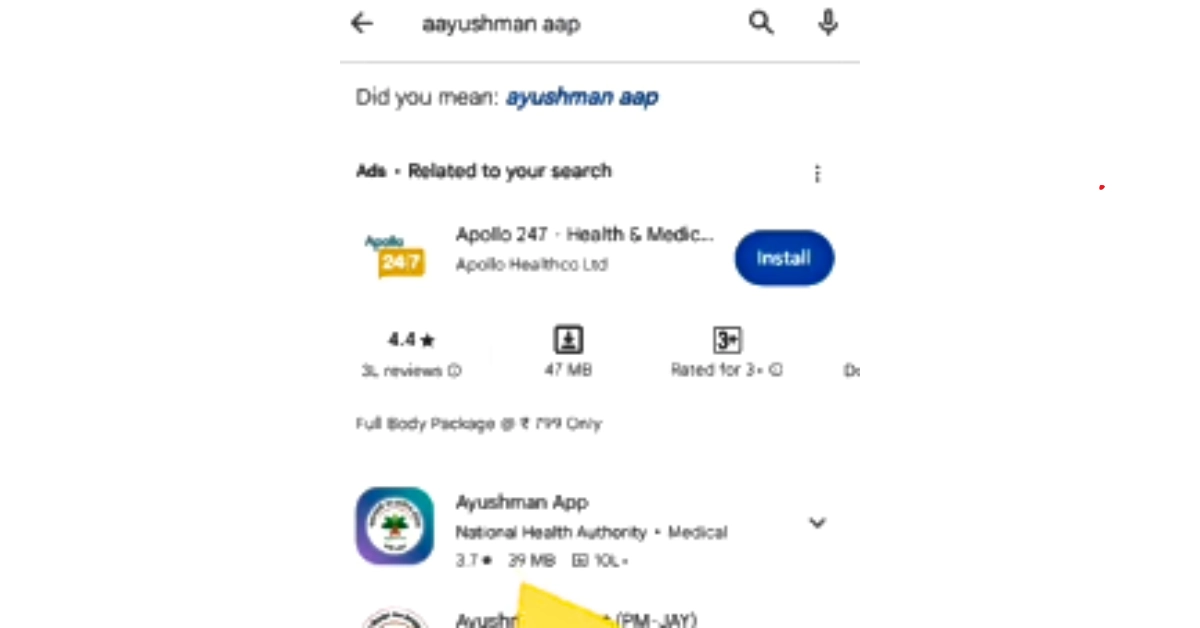
Step 3: Tap the official app titled “Ayushman Bharat” published by “National Health Authority”
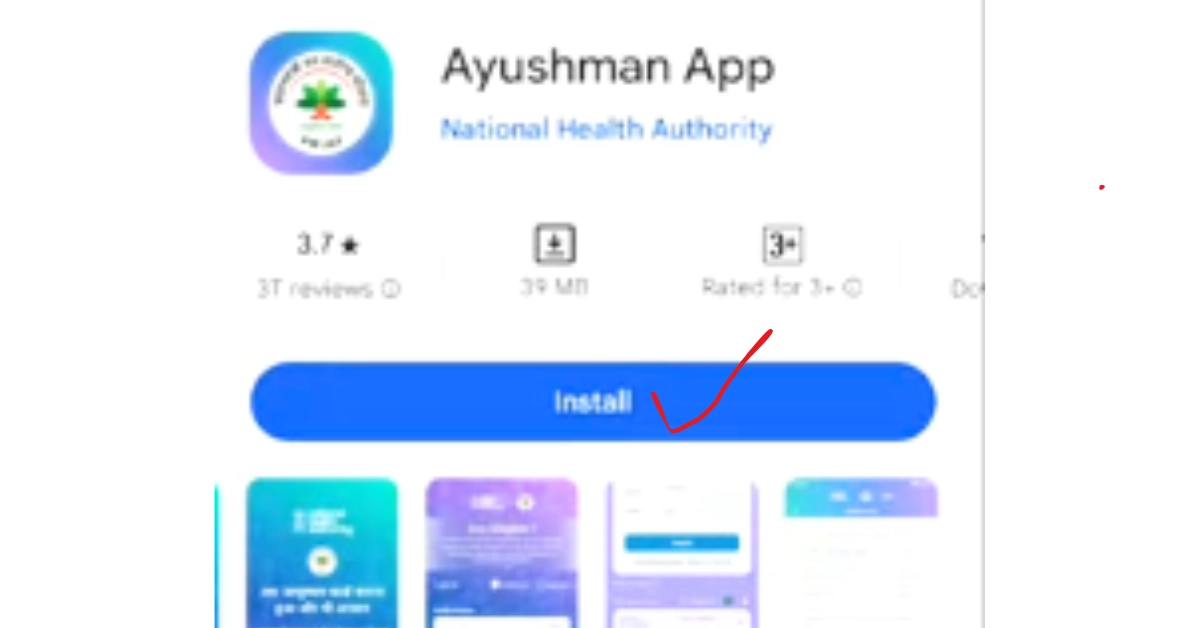
Step 4: Verify the install count is in crores
Step 5: Tap “Install” — download typically completes in under 30 seconds on 4G
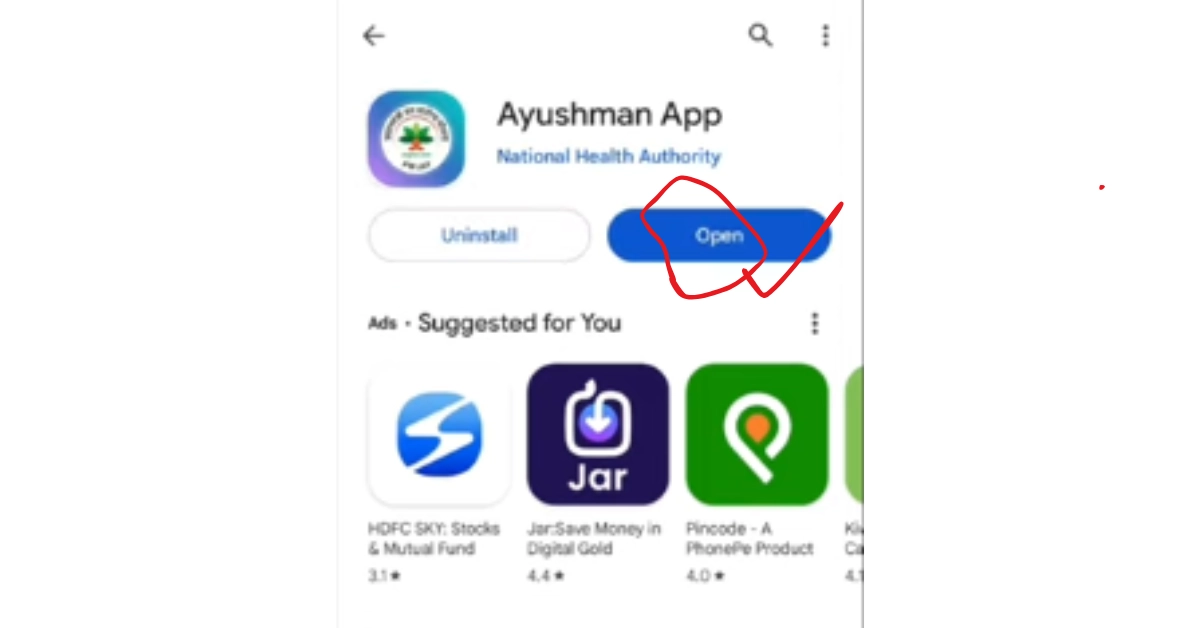
Step 6: Tap “Open” to launch the app
Method 2: Via Official PMJAY Website
If you’re unsure whether a Play Store listing is genuine:
- Visit pmjay.gov.in in your browser
- Look for the “Download App” link
- Click — it redirects you to the verified Play Store listing
- Install from there
This approach eliminates any doubt about installing a fake variant.
Avoid APK Files
You may find third-party websites offering “Ayushman App APK” downloads. Do not install these — APKs from unofficial sources are a common vector for malware on Android. Stick to the Google Play Store. If your Play Store isn’t working, troubleshoot Play Store first rather than going through APK sites.
How to Install on iOS (iPhone)
The official app is available for iOS 12.0 and above on the Apple App Store.
- Open the App Store on your iPhone
- Tap the Search tab and type “Ayushman Bharat”
- Look for the app with developer listed as “National Health Authority”
- Tap “Get” and authenticate with Face ID, Touch ID, or Apple ID password
- The app installs automatically — tap “Open” to launch
iOS has stricter App Store verification, making fake apps rarer — but always verify the developer name regardless.
First-Time Setup
After installing, complete this one-time setup:
Step 1: Choose Your Language
The first screen offers 13 language options. Select your preferred language — it can be changed later via settings.
Step 2: Grant Permissions
The app requests:
- Camera — for live photo during eKYC and Face Authentication
- Photos/Storage — for saving downloaded Ayushman Card PDFs
- Location — for finding nearby empanelled hospitals
- Notifications — for application status updates
Tap “Allow” for each — all permissions are required for core functionality.
Step 3: Choose Login Type
Select “Beneficiary Login” (the “Operator Login” is for CSC operators only).
Step 4: Login with Mobile + OTP
Enter your Aadhaar-linked mobile number, tap Send OTP, then enter the 6-digit code to log in.
App Features Walkthrough
Search Beneficiary
The main feature — search the PMJAY database by Aadhaar, mobile, family ID, ration card, or name. This is the starting point for most user journeys.
eKYC
Complete the Aadhaar-based identity verification needed before card generation. Supports both OTP and Face Authentication. For details, see our eKYC guide.
Download Card
Once approved, this section lets you download the Ayushman Card PDF directly to your phone storage. Full walkthrough: Ayushman Card Download.
Hospital Locator
GPS-based search showing all empanelled hospitals near your current location. Includes specialty filters, distance sorting, and Google Maps directions. Complete guide: Hospital List.
Vay Vandana Registration
Dedicated section for senior citizens aged 70+ to enroll under the Ayushman Vay Vandana Card scheme.
Frequently Asked Questions
Is the Ayushman Bharat app free?
Yes — the official Ayushman Bharat app is completely free to download from the Google Play Store and Apple App Store. There are no in-app purchases or subscription charges. Any app version requesting payment is fake and should be uninstalled immediately.
Which is the official Ayushman app on Play Store?
The genuine app is titled “Ayushman Bharat”, published by “National Health Authority”. It has over 5 crore downloads and 4+ star ratings. The publisher name is the most reliable identifier — many lookalikes use similar titles but different developer names.
Can I download my Ayushman Card directly through the app?
Yes. Once your eKYC is approved, the app supports direct PDF download to your phone storage. The download requires Aadhaar OTP authentication for security. See the Ayushman Card download guide for the complete process.
Does the Ayushman app work on iPhone?
Yes — the official app is available on the Apple App Store for iOS 12.0 and above. All features work identically to the Android version. iPhones often perform Face Authentication better due to higher-quality front cameras.
What languages does the Ayushman app support?
The app supports 13 Indian languages: English, Hindi, Bengali, Tamil, Telugu, Marathi, Gujarati, Kannada, Malayalam, Punjabi, Urdu, Odia, and Kashmiri. Switch anytime from the settings menu.
Last Updated: May 2026 · Verified from Google Play Store and pmjay.gov.in · Helpline: 14555
AyushmanCard-Download.com is an independent informational portal not affiliated with the Government of India. Read our full disclaimer.